Start with a short typed conversation, then add microphone input and spoken replies one layer at a time. This guide follows the current Verity JE v6.0.0-beta.7 boundary for Minecraft 1.20.1 with Forge and avoids guessing at undocumented keybinds.
Project and version data checked against Modrinth on August 23, 2026.
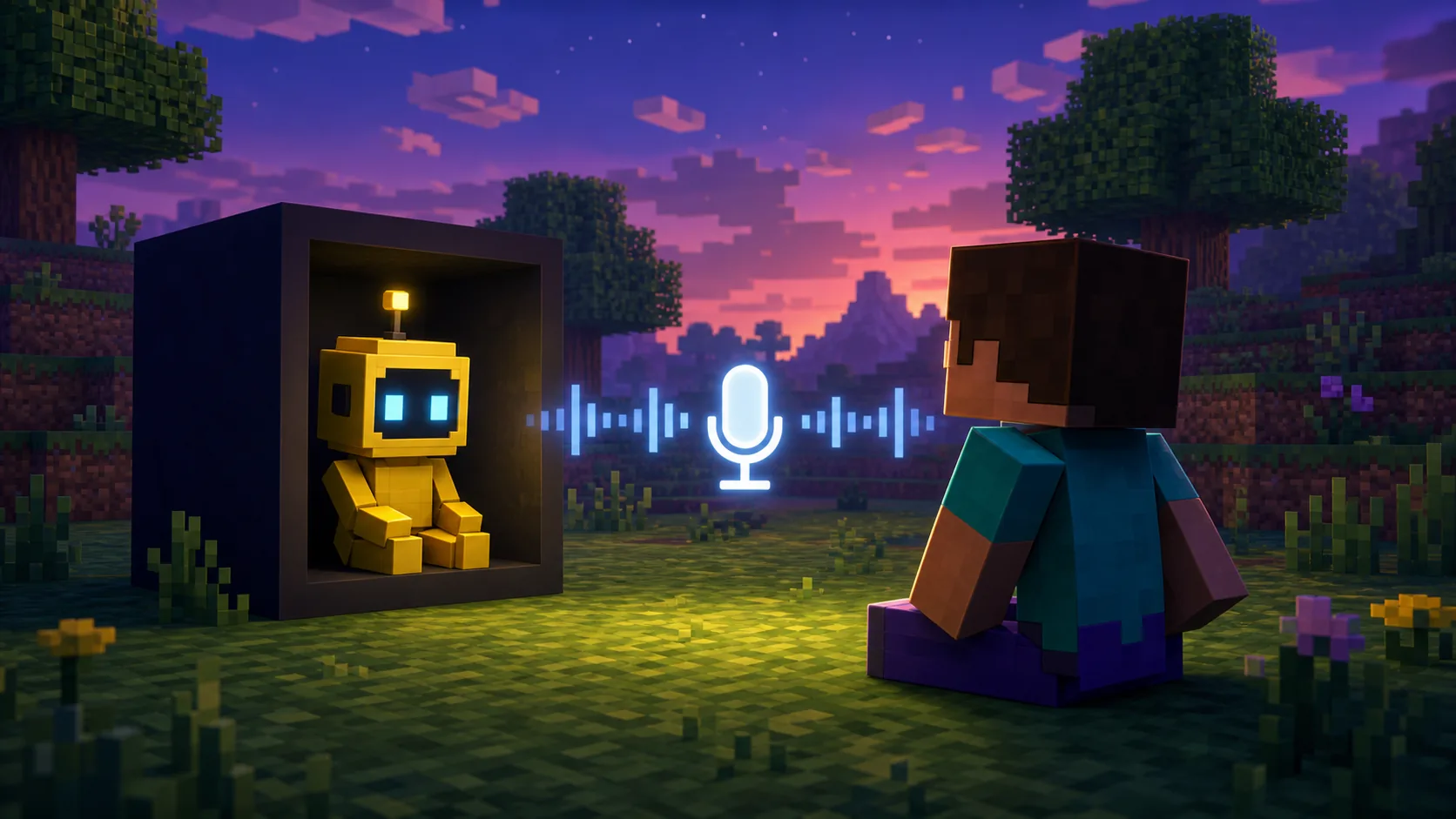
Editorial concept image, not an official game screenshot or Verity interface.
Quick answer
Use text chat to prove the AI path before testing voice
To talk to Verity in Minecraft Java, launch a clean Minecraft 1.20.1 Forge profile with Verity JE v6.0.0-beta.7, wait for the current introduction or interaction flow, and send a short typed prompt through the in-game path described by the release instructions. A typed reply confirms more of the mod and AI setup than a microphone test can.
When typed conversation works, enable microphone permission and test a short English phrase. Only then check text-to-speech and the selected speaker. The maintainer describes speech-to-text and text-to-speech as tested only in English, so a language that works in typed chat is not automatically a verified voice language.
Current Java release
Verity JE v6.0.0-beta.7
Minecraft
1.20.1
Loader
Forge
Conversation paths
Typed chat, microphone, TTS
Voice baseline
English
AI choices
Groq or Ollama
Start with typed chat first
The first goal is not a perfect role-play conversation. It is a repeatable request and response.
Use a disposable world or a duplicate profile while you test. Let the current Verity introduction or spawn flow finish, then use the typed interaction shown by the release instructions or the in-game prompt. Do not rely on a keybind copied from an old video; configuration and interaction details can change between releases.
Ask one short question that has an obvious response boundary, such as a greeting or a simple request for help. Wait for the response before sending another prompt. Record whether the prompt was accepted, whether the AI service returned an answer and whether the answer appeared in the expected Minecraft output. This separates an interaction problem from a service problem.
Test layer
What it proves
What it does not prove
Typed chat
The mod loaded, the interaction reached the AI path and a response returned
That the microphone or speaker works
Microphone
The operating system and speech-to-text path receive a short phrase
That Groq/Ollama or TTS is healthy
Text-to-speech
The response can reach the selected audio output
That the voice is supported in every language
Official project media from the Verity JE gallery. Seeing the box is a gameplay state; it is not proof that the AI service or microphone is configured.
Choose the Groq or Ollama conversation path
Verity needs an AI path beyond the Forge installation. The current project description points players toward an online Groq setup or a local Ollama setup. Choose one path, test it outside the game when possible and avoid changing providers while you are still trying to identify the first failure.
Groq keeps the model service online and makes network and credential checks important. Ollama keeps the model on your own machine, but the service must be running, the selected model must be available and the Minecraft process must reach the configured endpoint. A slow local response can look like a voice problem when it is really a model or memory problem.
1
Identify the active provider
Write down whether the profile uses Groq or Ollama before changing a setting.
2
Test the provider separately
Confirm the credential or local model responds without sharing a secret in a screenshot or log.
3
Return to typed chat
Use one short prompt and wait for a response before adding microphone variables.
4
Keep the working path
Back up the configuration once typed conversation is repeatable.
The setup video is included because it directly covers the AI configuration path; it is supplemental to the crawlable steps above. Open the linked tutorial
Enable the microphone and test voice input
Treat microphone input as a separate permission and device test.
After typed chat works, allow the Minecraft runtime or launcher to use the microphone in the operating system privacy settings. Select the intended input device, temporarily disable unused virtual microphones and record a short English phrase outside Minecraft. If the operating-system recording test fails, changing Verity settings will not fix the input device.
Use a quiet, short phrase and wait for the response. Headsets can switch between communication and stereo modes after Minecraft starts, so recheck the active device and volume mixer when recognition works once and then stops. The page is a setup guide, not a promise that every language or headset is supported.
1
Allow microphone access
Grant permission to the Java runtime, launcher or game process that actually runs Minecraft.
2
Choose one input device
Set the physical microphone as the active input and remove competing virtual devices for the first test.
3
Record outside the game
Confirm that the operating system receives a clear English phrase.
4
Repeat the same prompt
Use the same short phrase so a changed result has useful evidence.
Check text-to-speech output
Text-to-speech should be the last layer you add. If Verity recognizes a typed or spoken prompt but you hear no reply, inspect the selected speaker, operating-system output device, Minecraft volume mixer and headset mode. Do not immediately reinstall the mod: a correct text answer already proves that a different layer is working.
Use English for the baseline because the current project documentation describes speech-to-text and text-to-speech as tested only in English. The related search term `verity tts` is ambiguous and is also associated with Fish Audio, so this page explains TTS as one Verity feature rather than presenting a separate voice-generator product.
Typed answer appears before voice is enabled
The correct speaker or headset is selected
Minecraft and the system volume mixer are not muted
The English baseline is repeatable
A voice failure is recorded separately from an AI/API failure
Official project media. A demon or other visual event is a gameplay state, not evidence that TTS or the microphone has failed.
Understand privacy and multiplayer boundaries
Online AI and microphone features introduce data decisions that do not exist in a text-only local test. Check which provider receives the prompt, who owns the credential and whether microphone audio or transcripts leave the computer. This site cannot turn a third-party service into a privacy guarantee; use the provider's current documentation for retention and account details.
For multiplayer, agree on the test profile, mod version and AI provider before inviting other players. Do not put one player's personal API key in a shared server configuration. If Ollama is exposed beyond localhost, review firewall, network and access controls before treating it as a private setup. The server and clients should follow the current project compatibility boundary.
Situation
Safer boundary
Related guide
Single-player Groq
Keep the credential private and test typed chat first
Java installation
Single-player Ollama
Keep the service local while validating the endpoint
Ollama setup
Shared server
Decide who owns the AI account and how voice is handled
Multiplayer
Public bug report
Remove keys, tokens, private paths and server addresses
Safety guide
When Verity will not answer
Find the earliest failing layer instead of changing installation, AI and audio settings together.
If Verity does not appear, return to the current Java installation and release boundary. If Verity appears but typed conversation fails, identify whether the active provider is Groq or Ollama and test that service separately. If typed chat works but voice input fails, inspect permission and the input device. If speech is recognized but no sound plays, inspect TTS and output selection.
Keep the exact release, Minecraft version, Forge profile, provider choice and first error line in your notes. The current Troubleshooting guide is the right place for logs and deeper diagnosis; this page should remain the positive “how to start talking” path.
First failure
Check first
Do not conclude yet
Minecraft will not launch
Forge profile, Verity JE v6.0.0-beta.7 and current release metadata
That voice is the cause
Verity is absent
Mod list, world and current introduction flow
That the API key is wrong
Typed prompt has no answer
Groq/Ollama service and exact error
That the microphone is broken
Input is not recognized
OS permission and selected microphone
That TTS is broken
Answer is silent
Output device, volume and TTS layer
That the model did not answer
How to talk to Verity FAQ
What is the easiest way to talk to Verity in Minecraft?
Start with a short typed prompt through the current in-game interaction flow. Once a typed answer is repeatable, add microphone input and then text-to-speech.
Can I talk to Verity with a microphone?
The project documents voice interaction, but your operating system must grant microphone access and the input device must work. Use a short English baseline before diagnosing other languages.
Does Verity support every language for voice?
Do not assume that. The current project information says speech-to-text and text-to-speech have been tested only in English, even though typed AI chat may be broader.
Should I use Groq or Ollama to talk to Verity?
Use one provider at a time. Groq requires a working credential and network path; Ollama requires a running local service, an available model and a reachable endpoint.
Why does Verity answer in text but not speak?
Check the selected speaker, system and Minecraft volume, headset mode and the TTS layer. A working typed answer means the problem may be audio output rather than the AI request.
Is `verity tts` a separate Verity voice generator?
Not necessarily. Similarweb results are led by Fish Audio for that term, so this guide treats TTS as a Verity conversation layer and does not present an independent generator page.
Conversation guide sources
Use the current maintainer-controlled project record for release facts and setup boundaries; the generated illustration on this page is clearly editorial and not official media.
Verity JE on ModrinthProject description, current feature notes and maintainer-linked setup material.
Verity JE version APICurrent version v6.0.0-beta.7, Minecraft 1.20.1, Forge and primary-file metadata.