Verity Mod Not Working? Fix AI, Voice and API Errors
When Verity Mod is not working, identify the failing layer before reinstalling: Minecraft and Forge, GeckoLib, spawn and assets, Groq or Ollama, then microphone and speech output.
Project and version data checked against Modrinth on August 23, 2026.
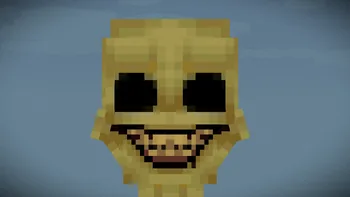
Official project media. A visible demon or missing demon is a gameplay state, not an API diagnostic by itself.
Fast diagnosis
Test one layer at a time
If Minecraft does not launch, inspect Forge and the required GeckoLib project dependency. If the game launches but Verity does not appear, inspect the mod list, world and spawn flow. If typed answers work but voice fails, inspect microphone permission, the output device and English voice support.
Change one layer at a time and preserve the first relevant log line.
Target release
v6.0.0-beta.7
Game
Minecraft 1.20.1
Loader
Forge
Libraries
GeckoLib project dependency
AI
Groq or Ollama
Voice test
English STT/TTS first
Troubleshooting decision tree
When Verity Mod is not working, identify the failing layer before reinstalling: Minecraft and Forge, GeckoLib, spawn and assets, Groq or Ollama, then microphone and speech output.
First failure
Check first
Evidence
Minecraft crashes before menu
Forge, Java, GeckoLib
latest.log and crash report
Game loads; Verity absent
Mod list, world, spawn
Mods screen and game log
Verity appears; no text answer
Groq or Ollama
Service test and API error
Text works; microphone fails
Permission and input
OS recording test
Speech recognized; no output
TTS and audio output
Speaker and language
Fix Forge startup and missing dependency errors
Verify Minecraft 1.20.1 and Forge. Add v6.0.0-beta.7, GeckoLib from its current project record and only files named by the release instructions.
A dependency error usually names a missing mod ID or incompatible version. Remove duplicate older libraries and read the first relevant latest.log error.
Confirm 64-bit Java and launcher settings appropriate for Minecraft 1.20.1
Use one Forge profile with no Fabric or NeoForge libraries
Keep only the files explicitly required by the current release instructions
Confirm the Verity JAR was downloaded completely
Read the first relevant error in latest.log, not only the final exit code
Fix Verity not spawning, missing sounds or animations
Confirm Verity appears in the loaded mod list and reproduce in a disposable world. An old world or skipped setup step can hide a feature even when the JAR loads.
For missing assets, compare verity-6.0.0-beta.7.jar with the published size and SHA-1, then retest with only Verity, GeckoLib and explicitly required files.
Fix API connection failed errors
For Groq, check network access, credential validity and the current endpoint without sharing the key. A 401 usually points to credentials; a timeout can indicate network, service or endpoint problems.
For Ollama, verify that the service and selected model respond outside Minecraft. A model that is still downloading or too large can look like a mod timeout.
Do not copy configuration from an old video without checking the current project instructions.
1
Identify the active AI path
Know whether the error belongs to Groq or Ollama.
2
Test the service independently
Confirm the credential or local model works before launching Minecraft.
3
Check the exact error
Record status code, timeout or connection text after removing secrets.
4
Compare current setup fields
Use the maintainer's latest tutorial and project page.
5
Retest typed chat
Do not add microphone variables until a text response works.
Fix “Verity cannot hear me” and voice problems
Test typed conversation first. Then allow microphone access, select the intended input device and record a short test outside the game.
Speech-to-text and text-to-speech have only been tested in English. If recognition works but Verity is silent, inspect the output device and TTS layer separately.
Typed AI response works
Minecraft runtime has microphone permission
The correct microphone is the default input device
A short English phrase records clearly
The correct speaker or headset is selected for output
Prepare a useful bug report
Include Verity version, Minecraft version, Forge build, the exact installed filenames, launcher, operating system and whether you selected Groq or Ollama. Describe the first failing step and attach the relevant log section. Remove API keys, tokens, account names and private server addresses.
Reproduce the issue in a clean test instance. If it disappears, list the additional mods from the failing instance. A report that says only “API error” or “Verity is broken” cannot distinguish a service outage from a loader conflict.
Verity Mod not working: create a repeatable test
When Verity Mod is not working, change one layer at a time and record the result.
Start with Minecraft 1.20.1 Forge, v6.0.0-beta.7, GeckoLib from the required project record and a new profile. Record whether the failure is startup, world loading, spawning, typed chat or voice.
For Aternos, compare server and clients at the same Minecraft, Forge and file versions. A 401 usually points to AI credentials or endpoint configuration; use the existing Aternos guide for server checks.
Name the first stage that fails
Change one loader, dependency, service or audio setting
Repeat the same world and interaction test
Save sanitized logs and the exact working configuration
Troubleshooting FAQ
Why does Verity crash on startup?
Check Minecraft 1.20.1, Forge, v6.0.0-beta.7, GeckoLib, duplicate files and the first relevant latest.log error.
Why is Verity Mod not working?
Name the first failing layer, change one setting, repeat the same test and keep the sanitized log.
Why is Verity voice not working?
Test typed chat, microphone permission, input device, English recognition and TTS output in that order.
How do I fix TTS not working in Verity?
Confirm recognition first, then check the selected speaker, volume mixer and English TTS support.
How do I play Verity Mod in Aternos?
Match server and clients on Minecraft 1.20.1, Forge, the same file and compatible AI settings.
Why does Verity stop talking on Aternos?
Compare server and clients, then check AI credentials and endpoint configuration; a 401 is usually not a download issue.
Troubleshooting sources
Use current project requirements and setup tutorials before applying fixes from unrelated remakes.