How to Run Verity Mod on Aternos: Java Server Setup & Fixes
This Aternos guide covers the Java Forge server boundary for Verity JE. It explains what must match on the host and each client, where Groq or Ollama actually runs, and what to check when Verity loads but stops talking. Aternos is a host, not the official Verity download source.
Project and version data checked against Modrinth on August 23, 2026.
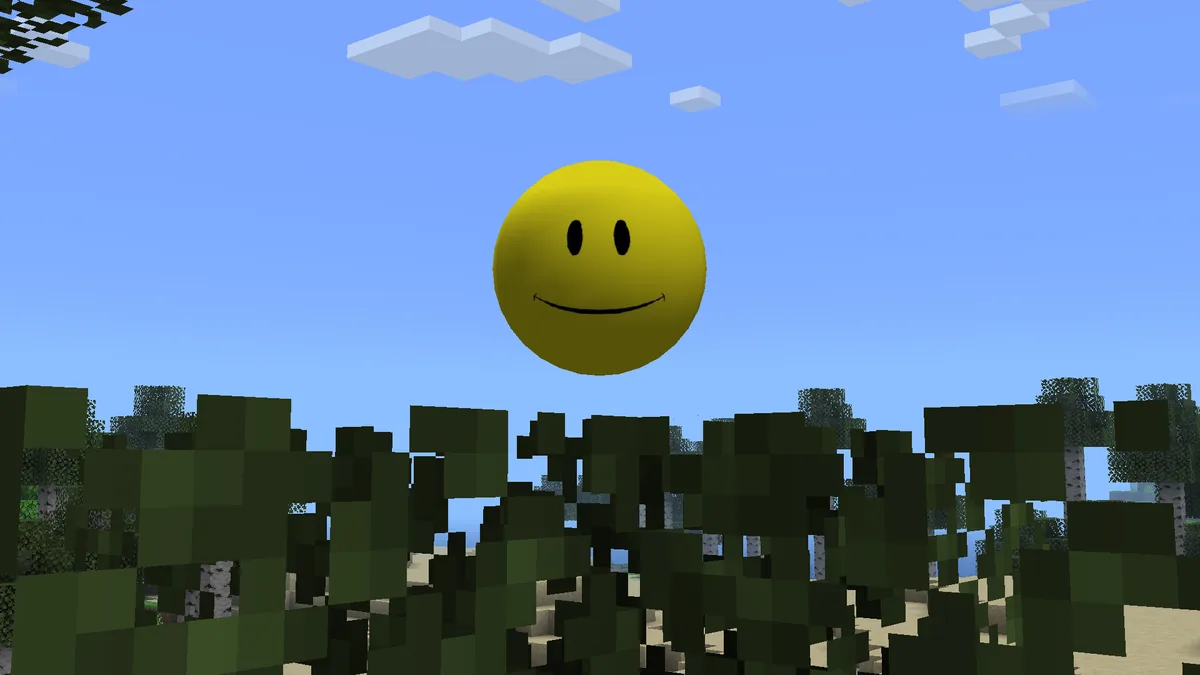
Official Verity project media. The Aternos host, Minecraft clients and AI service are separate layers.
Quick answer
Use a Java Forge server and match every client
Choose Minecraft Java 1.20.1 with Forge on Aternos, install the exact Verity JE release that the host can support, and give every player a matching client profile. If the Aternos catalog does not expose the required release, do not upload a random JAR or rename an unrelated file; use the maintained Modrinth record and a host that supports the needed installation path.
Aternos runs the Minecraft server process. It does not automatically provide Groq, Ollama, microphone permissions or a shared AI key. Decide where the AI service runs, test typed chat first, and keep credentials out of server archives, logs and public modpacks.
Minecraft
1.20.1 Java
Loader
Forge
Current release
Verity JE v6.0.0-beta.7
Server boundary
Required with matching clients
Aternos role
Minecraft host
AI path
Groq or Ollama; test separately
What Verity on Aternos actually requires
Treat the host, client and AI provider as three different checks.
The current Verity JE record is for Minecraft 1.20.1 with Forge. The release checked for this page is Verity JE v6.0.0-beta.7, published August 19, 2026. The primary file is 257,909,430 bytes and the SHA-1 is 4bdb2c2bbf8af6be1b1b4f82bfcaf72483277100; use the official Modrinth record rather than treating Aternos as a download mirror.
Aternos software and mod availability can change. First confirm that the exact Minecraft and Forge combination is offered in your Aternos server panel. Then check whether Verity is available through the host's supported mod or modpack workflow. A missing catalog entry is a host compatibility limitation, not a reason to install a renamed community file.
Minecraft Java Edition 1.20.1
A compatible Forge server and matching Forge clients
The same Verity JE release on server and clients when the project marks both sides required
A disposable test world and a backup before inviting players
A private, documented AI credential or a reachable local Ollama service
Layer
Check first
Do not assume
Aternos
Java software and supported Forge/mod workflow
That every custom JAR can be uploaded
Minecraft
1.20.1 on server and client
That a launcher profile name proves the version
Verity
Same project, release and file boundary
That a Bedrock add-on is a Java server mod
AI
Groq/Ollama endpoint and ownership
That the host supplies an AI API
Set up the Aternos Java server in stages
Use the Aternos software selector and its current installation instructions. Start the server once with no Verity changes, accept the EULA where required, and confirm that the clean Forge server reaches a stable running state. Stop it before changing the mod set.
Install Verity only through a supported Aternos mod or modpack path. If the exact Verity JE release is unavailable, preserve the evidence and stop at that boundary; a random upload can create an unmaintainable server and makes later troubleshooting ambiguous.
1
Choose Java and Forge
Select Minecraft 1.20.1 Java and a compatible Forge option in the Aternos server panel.
2
Run a clean start
Start and stop the empty server once so EULA, files and the basic console path are known-good.
3
Add the supported Verity release
Use the host's listed mod or modpack workflow and verify the project identity before enabling it.
4
Build a matching client
Give each player a clean Forge 1.20.1 profile with the same Verity release and file set.
5
Test one player first
Join a copied world, confirm loading and typed interaction, then add more players.
Official Verity project media is illustrative; follow the current Aternos panel and Modrinth release record for installation.
Match the client, server and AI path
A successful Aternos login proves network access, not that Verity's AI layer is configured. Keep the Minecraft handshake test separate from the provider test. The server and each client should agree on Minecraft, Forge, Verity and any declared dependencies before you investigate speech or prompts.
For Groq, define who owns the credential and where it is entered. For Ollama, define which computer runs the local service and whether the client or server can reach it. Never place a personal API key in a shared server download, screenshot, modpack archive or unredacted log.
Test
Expected result
If it fails
Join
Matching client reaches the copied world
Compare Minecraft, Forge, Verity and dependency files
Typed chat
Verity returns text
Check provider, endpoint, model and credential ownership
Voice
English test phrase is recognized or spoken
Check microphone permission, device and TTS separately
Restart
Server and world return cleanly
Review console and client logs without secrets
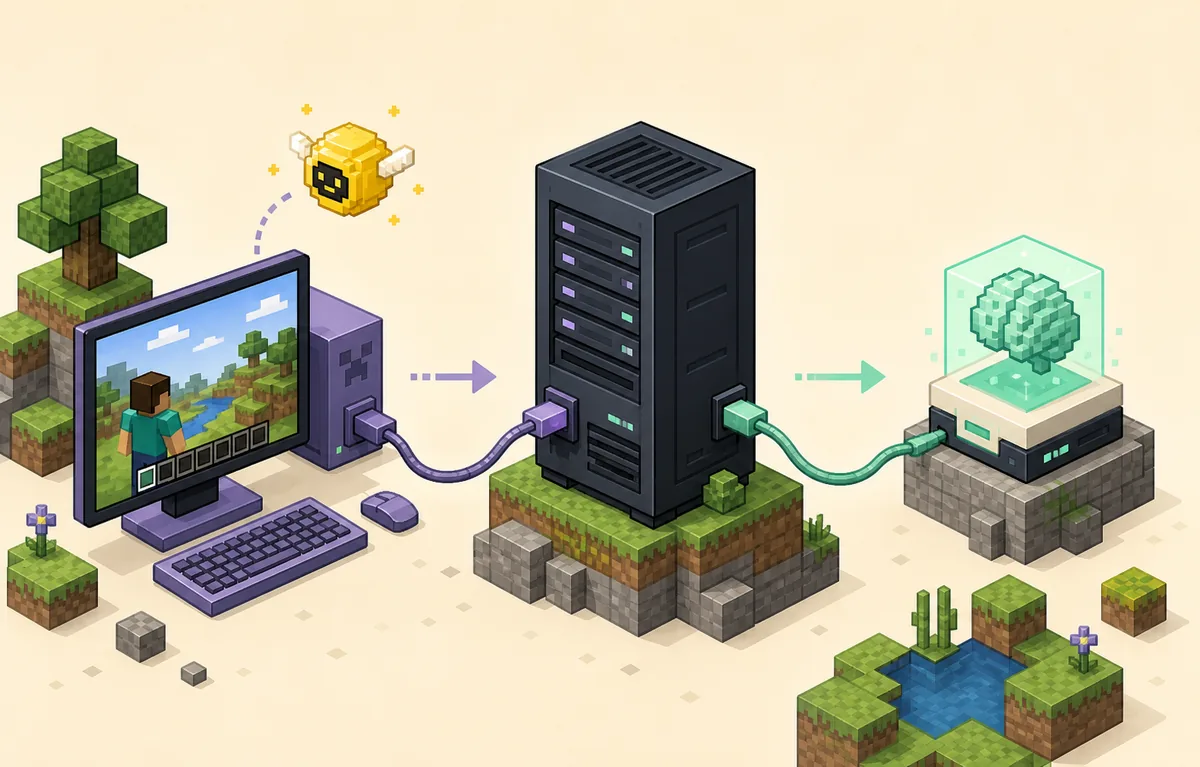
Editorial topology diagram, not an Aternos interface screenshot: keep the Minecraft host, player client and AI provider boundaries explicit.
Keep AI credentials outside the server share
Aternos can host the Minecraft process, but it does not make a shared API key safe. A public modpack or server export can expose keys, endpoints, local paths and copied configuration. Give players a clear statement about which prompts, transcripts or voice data leave their device and who controls the provider account.
If you use Ollama, verify the service location and network binding. A localhost service on one computer is not automatically reachable from another player or from Aternos. If the architecture needs a remote endpoint, restrict access, use firewall rules and remove credentials from every diagnostic file before sharing it.
Before opening the world to a group, write down a small test plan: one person owns the credentials, another checks only the Minecraft join, and logs are cleaned after the test. This makes it easier to tell whether a later failure belongs to the host, client or AI service.
Why Verity stops talking on Aternos
Diagnose from the first failed layer instead of reinstalling everything.
Start with the smallest reproducible test: one player, a copied world and a short typed prompt. If Minecraft cannot start or the player cannot join, stay in the loader/server layer. If the prompt fails after a successful join, inspect the AI provider and exact error. Only after text works should you troubleshoot microphone, speech recognition or output.
Aternos console messages can show the server side of a failure, while the player's latest.log can show client configuration. Save only the relevant lines and remove API keys, tokens, private IP addresses and local paths before posting them.
1
Confirm the release
Compare the server and client file names, Minecraft 1.20.1 target and Forge boundary.
2
Test typed chat
Use a short English prompt so voice permissions do not hide an AI connection problem.
3
Check the provider
Verify Groq credentials or the Ollama endpoint from the machine that owns the request.
4
Check the audio layer
Review microphone permission, active input, speaker output and tested language only after text succeeds.
5
Compare logs safely
Keep the first relevant error and redact secrets before asking for support.
Symptom
Likely boundary
Next action
Cannot join
Version, Forge or mod list mismatch
Rebuild the clean matching client
Verity missing
Wrong file or unsupported host workflow
Check the official project and Aternos availability
Text times out
Provider, endpoint or credential
Test the AI service independently
Text works, voice fails
Permission, input or TTS
Follow the voice guide and test English first
If you meant a Verity modpack
A search for how to install the Verity modpack on Aternos can describe a curated community pack rather than the official Verity JE project. Read the pack's own manifest, Minecraft target, loader and server instructions. Do not combine a pack's Verity copy with a separate JAR during the first test.
Use the existing Verity Modpack guide for project boundaries, then return here for the Aternos-specific host, client matching and AI checks. This page does not create a new download button because Aternos is not the official Verity file source.
Keep one pack profile separate from the single-mod profile
Check the pack author and release page
Confirm whether the pack supports a server and the selected host
Keep API keys out of exported pack files
Verity Mod Aternos FAQ
Can Verity Mod run on Aternos?
It can work when Aternos offers the required Java 1.20.1 Forge software and a supported way to install the exact Verity JE release. Check the host panel and the official Modrinth record; do not assume every custom JAR is uploadable.
How do I install the Verity modpack on Aternos?
Use the pack's own server manifest and Aternos-supported installation path. Keep the pack separate from the official single-mod profile and verify the pack author, loader and Minecraft version first.
Why does Verity stop talking on Aternos?
First test a short typed prompt. Then check the Groq credential or Ollama endpoint and the machine that owns the AI request. Microphone and text-to-speech are later, separate layers.
Does Aternos provide Groq or Ollama?
No. Aternos hosts the Minecraft server process. Groq or Ollama is a separate service whose endpoint, credentials and privacy boundary must be planned.
Can Bedrock players join this server?
No direct Java/Bedrock equivalence is implied. This guide targets Verity JE on Minecraft Java with Forge; Bedrock projects and add-ons have separate files and requirements.
Aternos and Verity sources
Use Aternos documentation for the host workflow and the official Modrinth records for Verity identity, release facts and the verified file. Aternos is not presented as an official Verity download source.