This Verity Mod Groq setup covers the cloud-provider path: create a key in Groq's own console, enter it in Verity JE settings, and confirm typed chat before testing voice. The Modrinth release list checked on October 24, 2026 showed Verity JE 6.0.0 for Minecraft 1.20.1 with Forge.
Verity release checked against Modrinth and provider setup links checked on October 24, 2026.
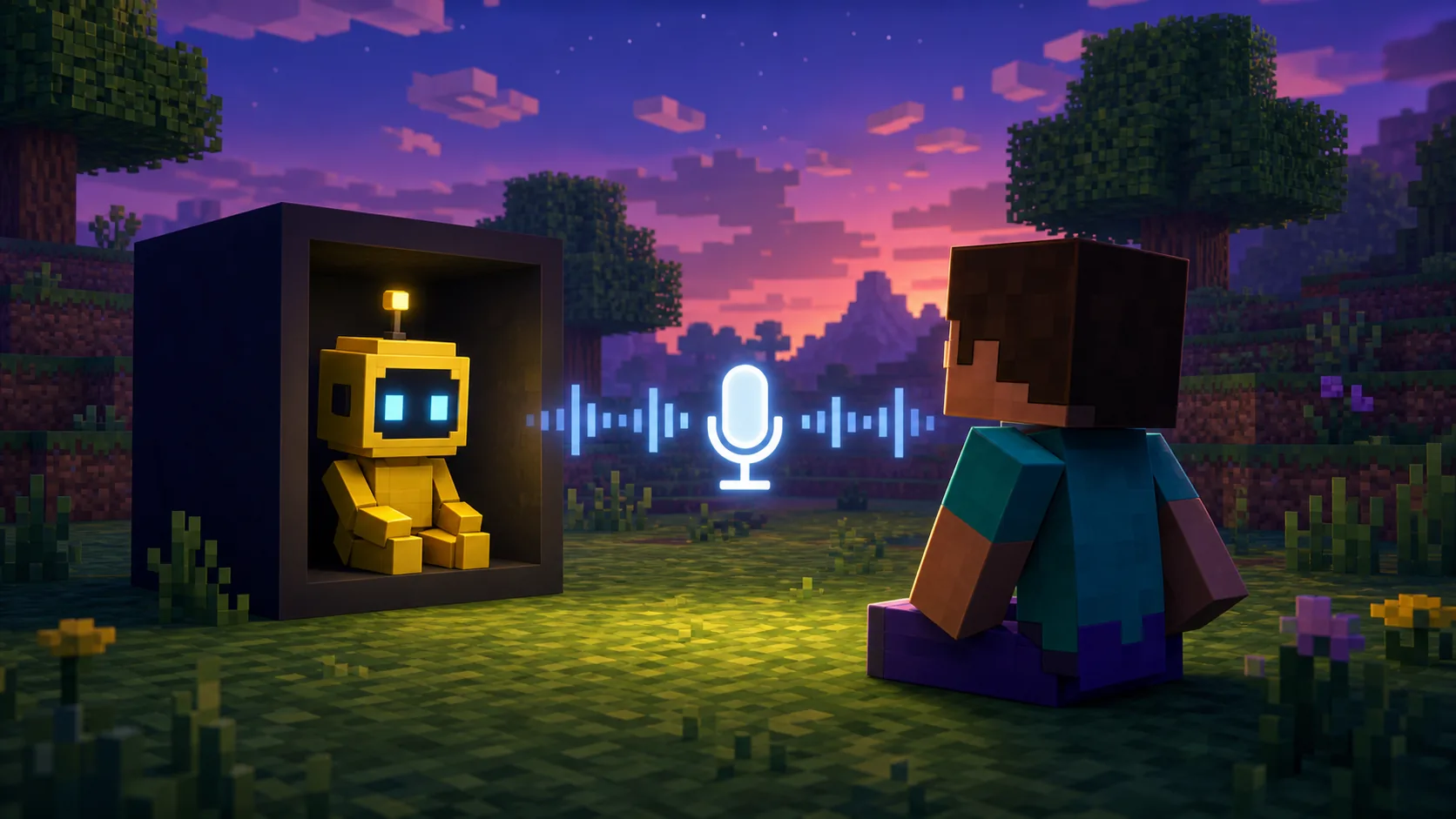
Concept art for the separate voice test. It does not depict the current Verity or Groq settings screen.
Quick answer
Create the key with Groq, then connect it inside Verity JE
Use the official Groq Console to create a private API key. In Minecraft Java, open the configuration provided by your installed Verity JE release, choose the Groq or online AI path, and enter the key only in the mod's own credential field. Menu labels can change between releases, so use the current maintainer instructions if your screen differs from an older tutorial.
Send one short typed prompt first. If that works, check microphone permission and spoken output as separate features. Never paste a real key into this website, a public chat, a screenshot, or a support post.
Verity release checked
6.0.0 · October 23, 2026
Minecraft
Java 1.20.1
Loader
Forge
AI path
Groq online
Test order
Typed chat, then voice
Verity Mod Groq setup: current version scope
The instructions below are for Verity JE, the Java project, and do not describe a Bedrock add-on.
The official Modrinth version API was checked on October 24, 2026. It listed Verity JE 6.0.0, published October 23 for Minecraft 1.20.1 with Forge; its notes mention AI changes. This confirms the release context, not that every menu label or model is unchanged.
Older Groq instructions describe 5.7.4, so treat their exact menu path as version-specific. Follow the settings and maintainer notes for your installed release. These steps cover the Java Forge project only, not Bedrock, Fabric, or another similarly named mod.
Check
Verified value
What it means here
Verity JE release
6.0.0 · October 23, 2026
Checked against the project API on October 24.
Minecraft and loader
1.20.1 · Forge
Use the matching Java profile shown by the project source.
Provider
Groq online
Online requests need network access and an accepted key.
Voice
Test separately
A working text response does not prove microphone or speech output works.
First-party project media helps identify the Verity JE context; it is not evidence of a Groq setting or key screen.
Before you create a Groq API key
First confirm that a clean Minecraft Java 1.20.1 Forge profile with Verity JE reaches a test world. A loader crash, missing dependency, or duplicate JAR occurs before Groq is involved; creating more keys will not fix it.
Groq sends requests online. If you prefer a local model, use the separate Ollama guide and test one provider at a time. Use an account you control, and never send your key to another player.
Minecraft Java 1.20.1 launches with the matching Forge profile.
Verity JE came from its maintained project source.
You can manage your own Groq Console credential.
You have chosen Groq online instead of testing two providers together.
Create a key in the official Groq Console
Sign in at Groq's own API Keys page and create a credential with a neutral label for your test profile. Copy the secret only when it is shown, then enter it directly in Verity. Check current model access and usage terms in Groq's console because they can change.
If the key is exposed, revoke it and create a replacement. Removing a message or screenshot cannot reliably erase copies already shared.
1
Open Groq's console
Go to console.groq.com/keys and confirm the domain. Avoid key generators and third-party forms.
2
Create and copy a key
Use a neutral label, keep the secret private, and move it directly to Verity's setting.
3
Review access
Check current model availability and account limits; do not rely on an older tutorial's quota.
Connect the key in Verity JE settings
Open the configuration for the Forge profile that runs Verity JE and choose Groq or its online AI option if the current release offers it. The 5.7.4 menu path in older instructions is not verified for 6.0.0; check the current maintainer notes if labels differ.
Paste the key only into a field explicitly labeled for the Groq credential. If a model choice appears, use one supported by current Verity instructions and your Groq account. Save as directed, then send one short, non-private typed prompt. The release record does not specify a default model, keybind, or configuration filename.
1
Open Verity's configuration
Use the current Forge profile. If the control is missing, confirm that the mod loaded before changing files.
2
Select Groq
Choose the online provider if it appears. Do not put an Ollama localhost address in this field.
3
Enter the key and test
Use only the labeled credential field, save as directed, then try one harmless typed prompt.
Test typed chat before microphone or speech
A text reply is the first useful success signal. Voice adds separate input, recognition, and output steps.
A typed reply is the first success signal: it suggests the mod reached the provider and the key was accepted for that request. It does not test microphone permission, speech recognition, or audio output. Use a short prompt and retry only once for a clear temporary connection error.
After text works, check OS microphone permission and the selected input device, then test a short spoken phrase and output audio separately. Chat-language support does not prove voice support. A game animation is not an API status signal; record the first failing layer and redact keys before sharing logs.
1Typed prompt
Checks the text provider with a short, non-sensitive message.
2Microphone
Checks permission, device selection, and speech recognition.
3Audio reply
Checks response playback and the output device separately.
Project media can illustrate the game context, but a visible entity is not proof that the Groq request succeeded.
Fix common Verity Mod Groq setup errors
Change one layer at a time: confirm the Forge profile, provider, key, model access, network, then audio. Keep the first error and time, but redact credentials, account details, and private paths before sharing logs.
Symptom
Check first
Next action
No Groq option
Confirm Verity JE loaded in the intended Forge profile.
Check current maintainer instructions; do not invent a config file.
Credential is rejected
Check that the whole key was copied into the Groq credential field and remains active in the provider console.
Create a replacement if exposed or revoked, then update the in-game setting.
Model or access error
Check current Groq account access and Verity instructions.
Use a supported choice, not an unchecked name from an older tutorial.
Request timeout
Check game loading, network access, and current provider status.
Retry once after checking connectivity.
Text works but voice fails
Check microphone permission, input selection, language support, and audio output separately.
Keep the working text configuration and troubleshoot one audio layer at a time.
Protect, rotate, and revoke the key
Treat the key like a password: keep it out of public repositories, screenshots, livestreams, crash reports, and shared configuration. Groq is an online provider, so review its current data policies and avoid sensitive prompts; a local settings screen does not prove that conversations stay on your computer.
If a key is exposed, revoke it in Groq, create a replacement, update Verity, and test again. Redact credentials from launcher files and logs before sharing them.
Create and revoke keys in Groq's own console.
Never paste a key into this website or a third-party form.
Redact secrets from logs; revoke exposed keys and replace them.
Verity Mod Groq setup FAQ
Is Groq required to use Verity JE?
No. The site documents Groq as an online AI path and Ollama as a separate local path. Choose one provider and follow instructions for the installed Verity release.
Where should I enter a Verity Mod Groq API key?
Only in the credential field shown by Verity JE's own current configuration. Do not paste it into this website, a browser form, chat, a screenshot, or a public configuration file.
Why does text work while the microphone does not?
Typed chat tests a different path from microphone permission, device selection, speech recognition, and audio output. Keep text working and test each voice layer separately.
Does this guide cover Bedrock?
No. It covers Verity JE on Java 1.20.1 with Forge. Check each project's own source for compatibility.
Does a working key keep prompts private?
No. A key confirms request access, not privacy. Review Groq's current data policies and avoid sensitive prompts.
Current project and provider sources
Use first-party sources for release identity, API key management, and provider behavior. The current UI path can vary by Verity release.